
thinkingParticles is the first product to overcome one of the biggest shortcomings in 3ds Max when it comes to direct rendering of volumetric effects. Subscription Drop 10 onward offers its own, highly optimized, DirectVolumeRendering SDK (DVR SDK).
This SDK allows any 3rd party renderer to hook right into thinkingParticles' advanced visual effects pipeline and directly render its output. While this specific feature is aimed at rendering software developers, and not necessarily at the artist, in the long run it can benefit the whole 3ds Max ecosystem and visual effects world. The first rendering product to use this SDK is finalRender and it will unleash the full potential of OpenVDB Visual effects in 3ds Max.
DirectVolumeRendering allows you to handle VDB volume data like any other native object type in 3ds Max. There is no longer any need to export and import files. Rendering a VDB volume becomes as simple as rendering a Teapot in 3ds Max.
Handling large volume data is becoming more common in visual effects productions and before DVR, it was really a cumbersome task to manage or create OpenVDB files inside of 3ds Max. thinkingParticles offers a whole new way in working with VDB files.
By removing the need of manually exporting/importing VDB files while creating, manipulating and rendering complex volume data; a lot of overhead and possible cause of errors has been removed as well.
finalFluid uses a straight forward and fully transparent approach to direct rendering of volumes. As soon as finalRender is set as the 3ds Max production renderer DirectVolumeRendering will be automatically enabled and available.
It is important to note that You need to have at least finalRender Subscription DROP 6 or the equivalent finalRender FREE version to make use of DirectVolumeRendering with finalFluid.
There are 2 possible options:
1.) Within finalFluid create a simulation, and stop at any frame and press render. Direct Volume Rendering will automatically render the frame with an fR-VolumeVDB material applied to each simulation GRID. Animations will behave in the exact same way. Each frame will be simulated and rendered.
2.) Manually assign a fR-PyroVDB Material to enhance the look and realism of fire and smoke effects. fR-PyroVDB will give you much more control over fire and smoke effects than the standard fR-VolumeVDB material.
In any case, a finalRender VDB material is- or needs to be- assigned to the simulation grid to render the effect.
A volume data rendering/manipulation workflow within thinkingParticles can be split in 2 main components:
1.) Create a valid VDB Grid inside of tP by either
a) Importing a proper VDB file or
b) Procedurally create a proper VDB Grid inside of thinkingParticles
2.) Assign a fR-VolumeVDB material to one or more of the OpenVDB nodes in a DynamicSet
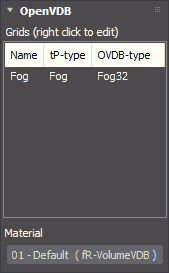
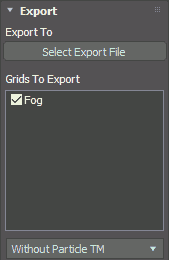
It is important to note that Volume Grids need to be of the correct data type e.g. Fog, Color... Grids to be rendered also need to be selected under the Export option of the following dialog, as shown below.
This Export Dialog is re-used to specify in a DVR situation which of the possible VDB grids should actually end up in the rendering.
Last but not least, all VDB rendering and shading is done based on grid volume data. Access to this volume data within the fR-VolumeVDB material is achieved through strict naming of each individual volume grid. All references to Volume Grid names are case sensitive!
One other important thing to check for is the Volume Renderable option in the Particle Group settings. If this flag is unchecked no volumes attached to those field particles will be rendered.